Account Preferences and Customized IAQ / IEQ Views
The User Settings feature allows users to manage account preferences and customize how IAQ / IEQ data is displayed within the NanoView App. In addition, the NanoView App includes several air-quality–specific customization features.
Accessing User Settings
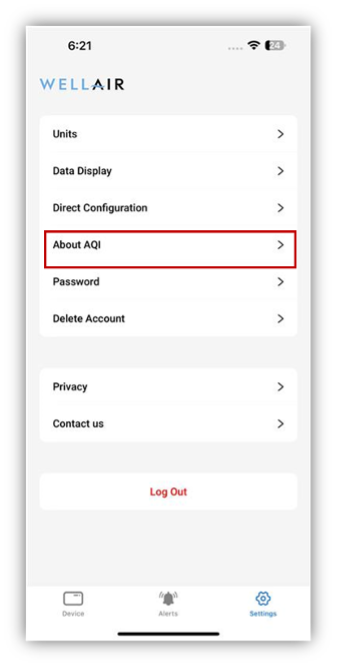
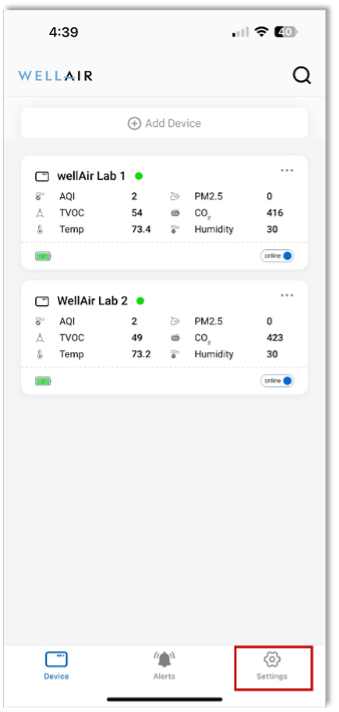
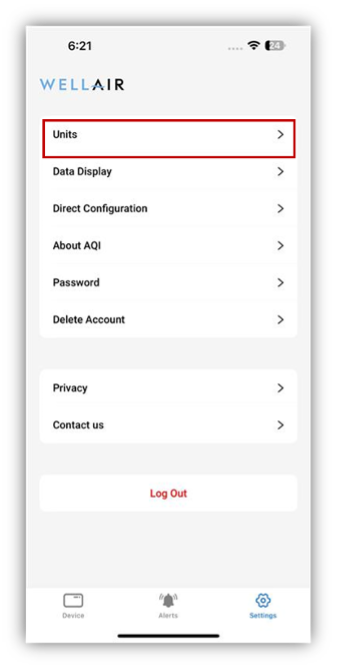
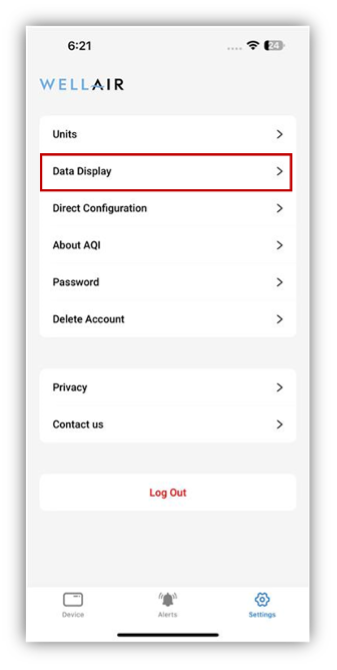
Step 1 From the NanoView App main screen, tap the Settings icon.
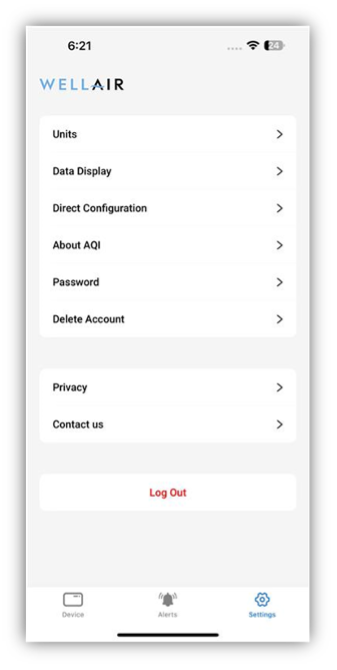
The User Settings screen provides access to common app features, including:
• Changing your password
• Deleting a user account
• Viewing privacy information
• Contacting WellAir support
Customizing IAQ / IEQ Measurement Units
Step 1 From the User Settings screen, tap Units.
The Units screen displays the available measurement units for each IAQ / IEQ parameter.
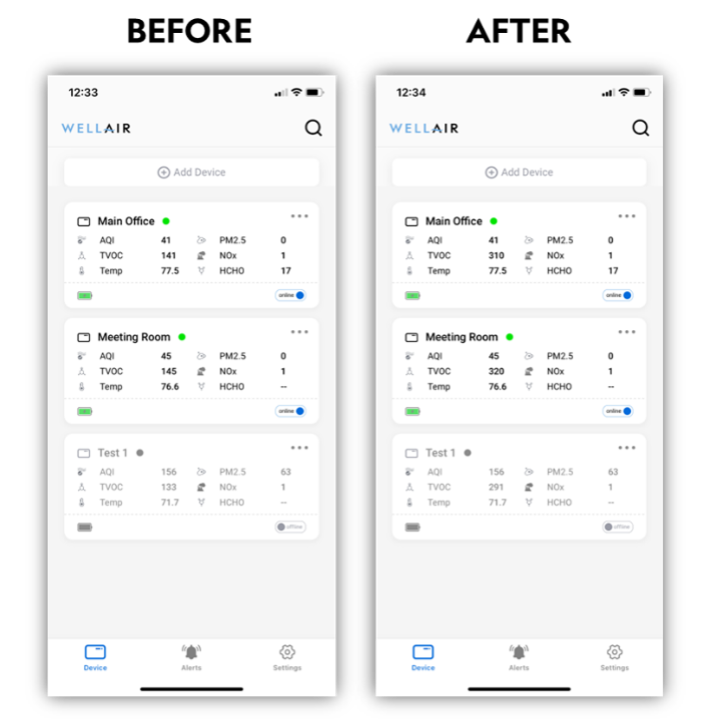
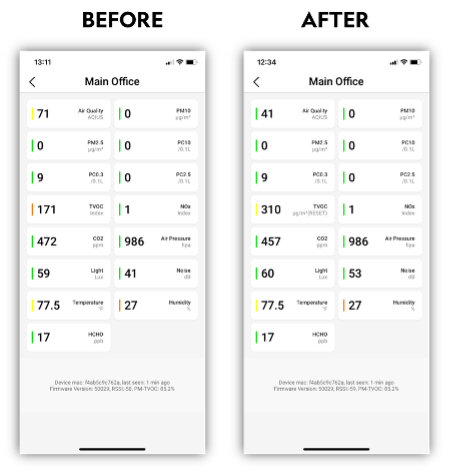
Step 2 Use the radio buttons or toggles to select how each parameter is displayed throughout the app (for example: ppm, ppb, µg/m³, or mg/m³).
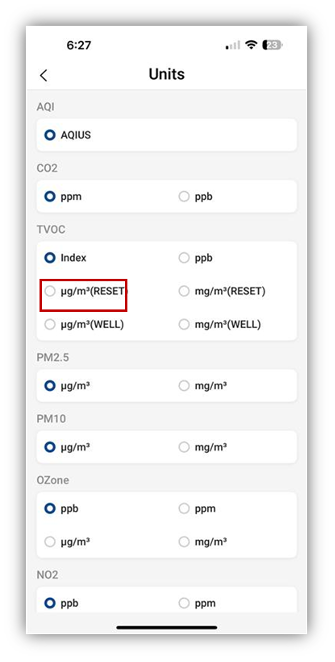
Changes are applied immediately and reflected in the Devices and Device Detail views.
Selecting Parameters Displayed on the Home Screen
Step 1 From the User Settings screen, tap Data Display.
The Data Display screen shows which 6 IAQ / IEQ parameters are currently displayed on the app home screen.
To change the selection:
• Tap an existing parameter to remove it
• Tap a new parameter to add it to the display
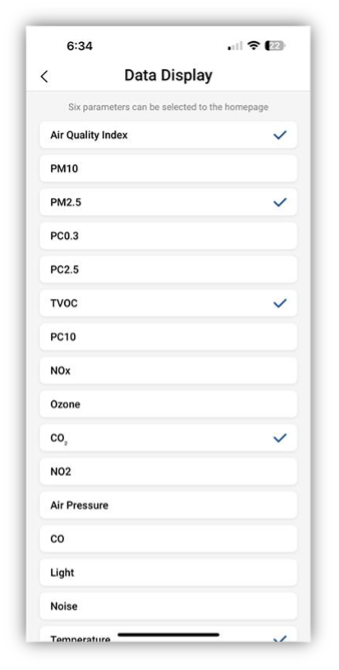
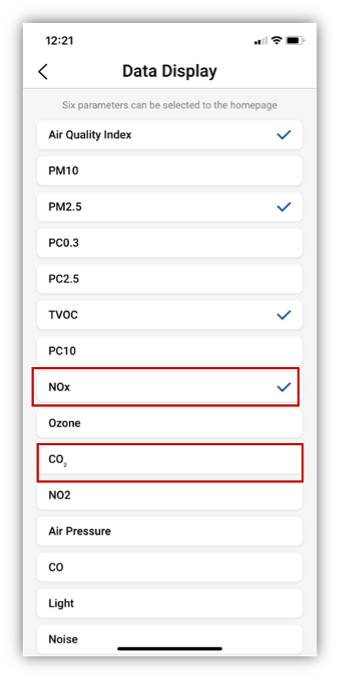
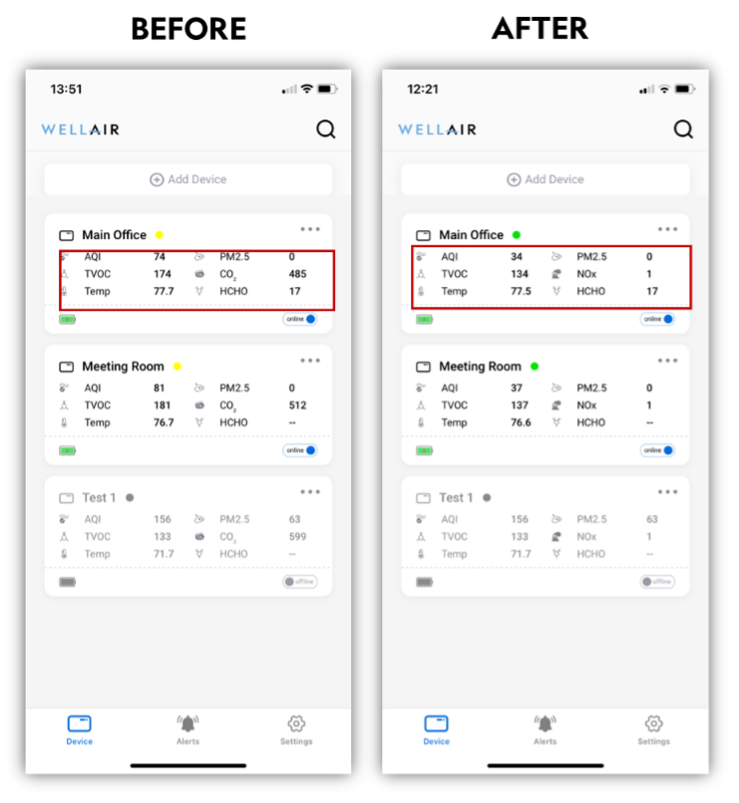
This will immediately change the parameters shown on the main screen:
The parameter list includes all available and optional sensor parameters. If a parameter is selected that is not installed on the device, it will appear on the home screen without data. So, for example, the WellAir Lab 1 sensor does not have ozone sensor as an option. If it was selected as a parameter to display on main screen it would be shown as follows:
Understanding AQI Colors and Indexes
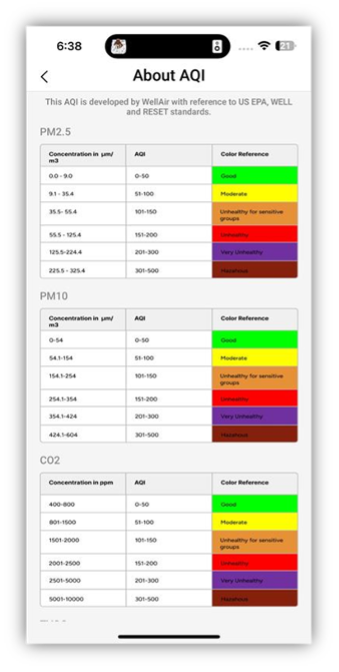
To learn how display colors relate to air quality levels, tap About AQI.
The About AQI screen provides index tables for each IAQ / IEQ parameter:
• Color coding meanings
• Measurement ranges for each color
Learn more about pollutants and IAQ colors in NanoDetect PRO and the NanoView App.